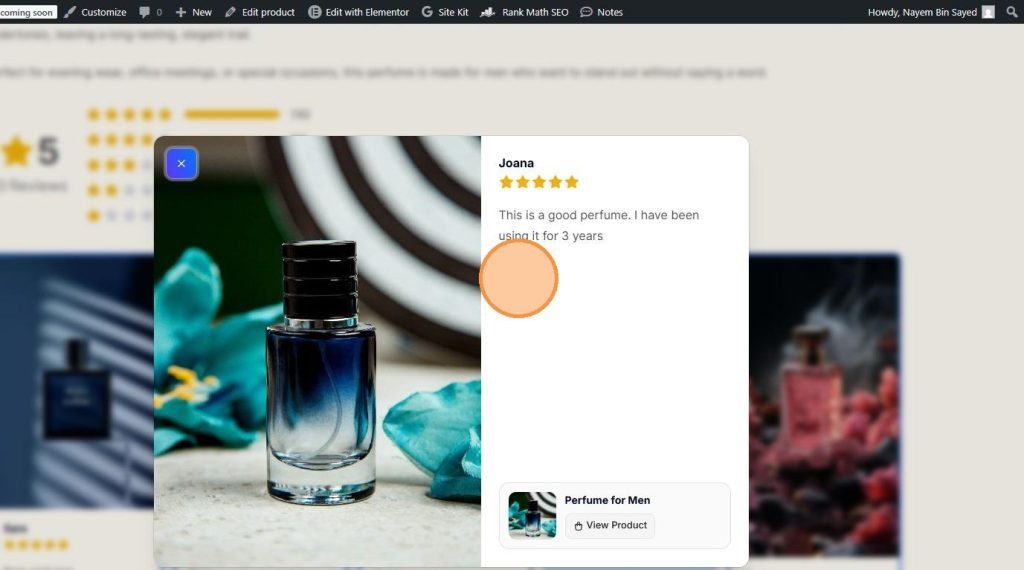
A Product Reviews Grid helps you showcase customer reviews in a clean, organized, and visually appealing layout. Instead of displaying reviews one at a time, a review grid allows visitors to browse multiple customer testimonials, ratings, photos, and videos at a glance, helping build trust and increase conversions.
If you’re looking for a simple way to display product reviews in a grid layout on your WooCommerce store, ProofWP makes it easy. With the Product Reviews Grid widget, you can showcase customer feedback, photo reviews, video reviews, and star ratings anywhere on your website using a customizable and responsive design.
Displaying reviews in a grid format not only improves the user experience but also highlights valuable social proof throughout your store. Whether you want to feature reviews on your homepage, landing pages, product pages, or sales pages, a review grid helps potential customers quickly discover authentic experiences from previous buyers.
In this guide, you’ll learn how to add a Product Reviews Grid to WooCommerce, customize its appearance, and display customer reviews anywhere on your website using ProofWP.

Step 1: Install and Activate ProofWP
- You need the ProofWP and ProofWP Pro plugin installed and activated on your website.
- You can find detailed installation instructions in our dedicated installation blog post.
- Install the plugin and click Activate once the installation is complete.
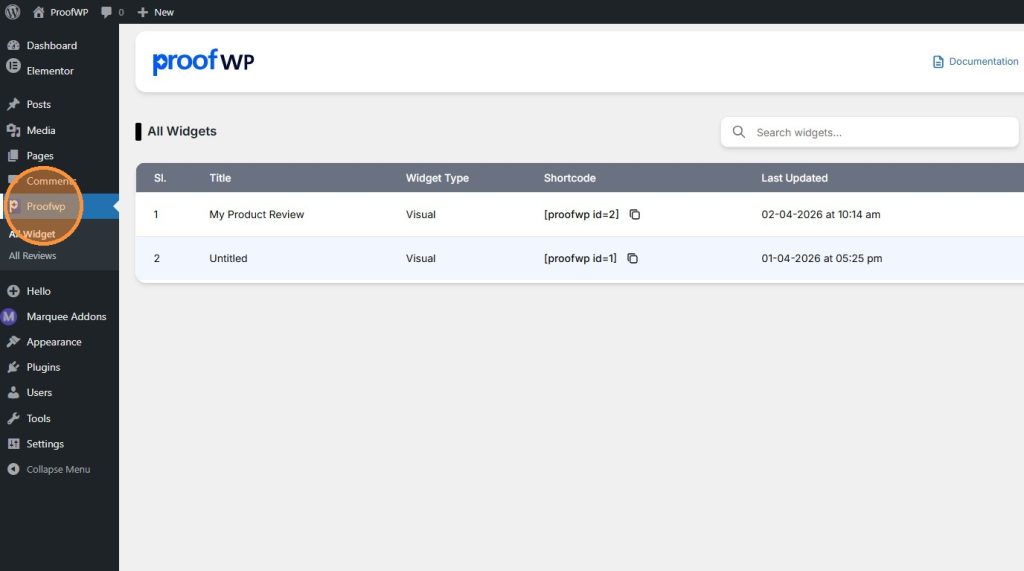
Step 2: Go to the ProofWP Dashboard
After activation, open the ProofWP dashboard from your WordPress admin panel.
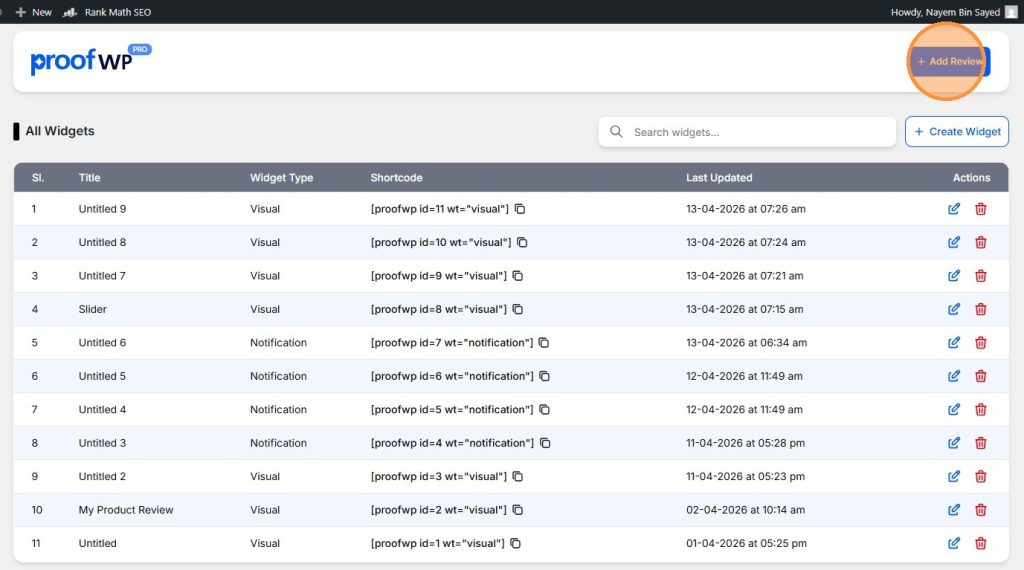
Step 3: Add a New Review
Click on the Add Review button to create a new review.
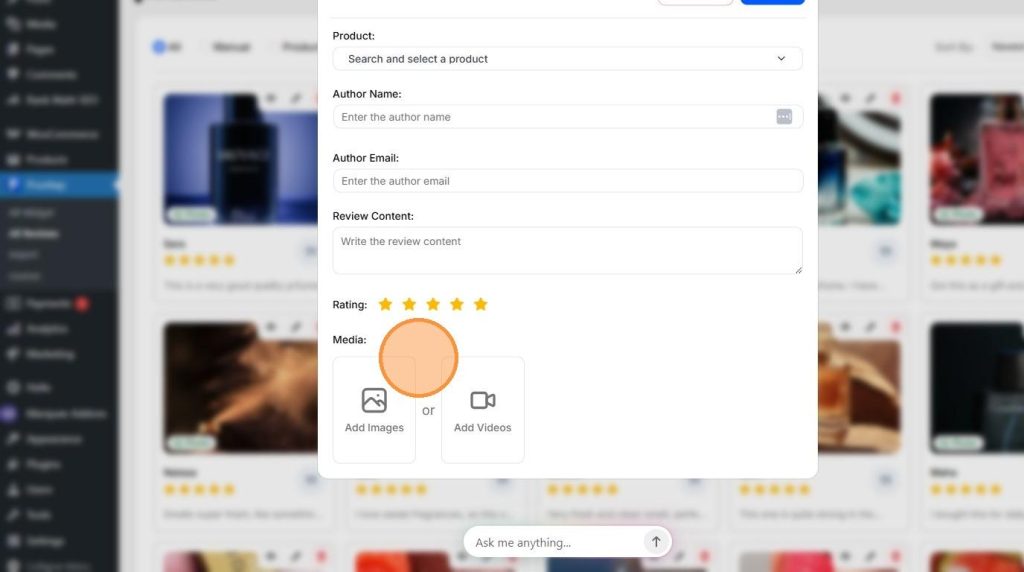
Step 4: Fill in the Review Details
Enter all the required information for your review, such as product, reviewer name, content, rating, and other details.
Step 5: Create a Review Widget
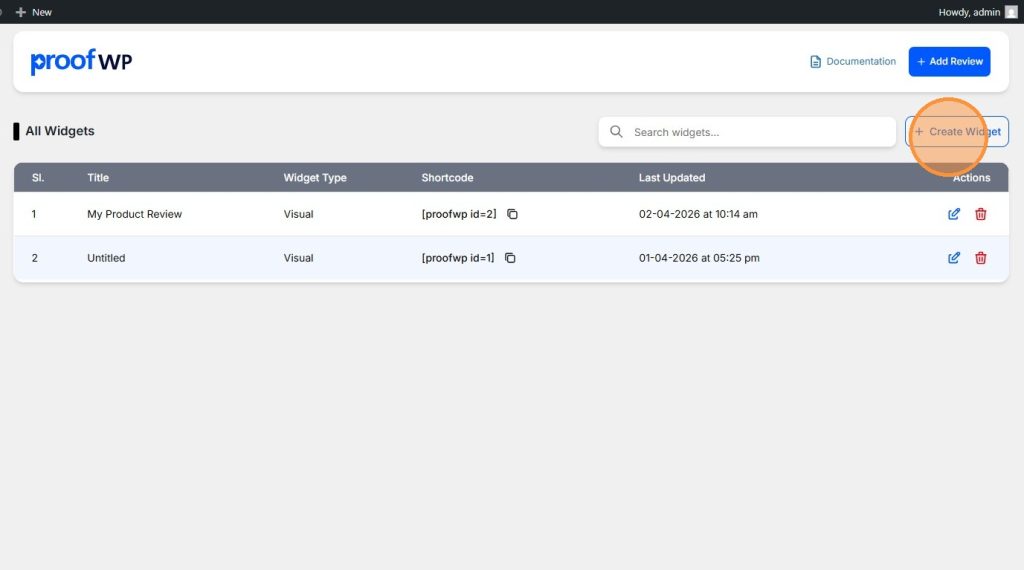
Now click on the Create Widget button to start building your review display.
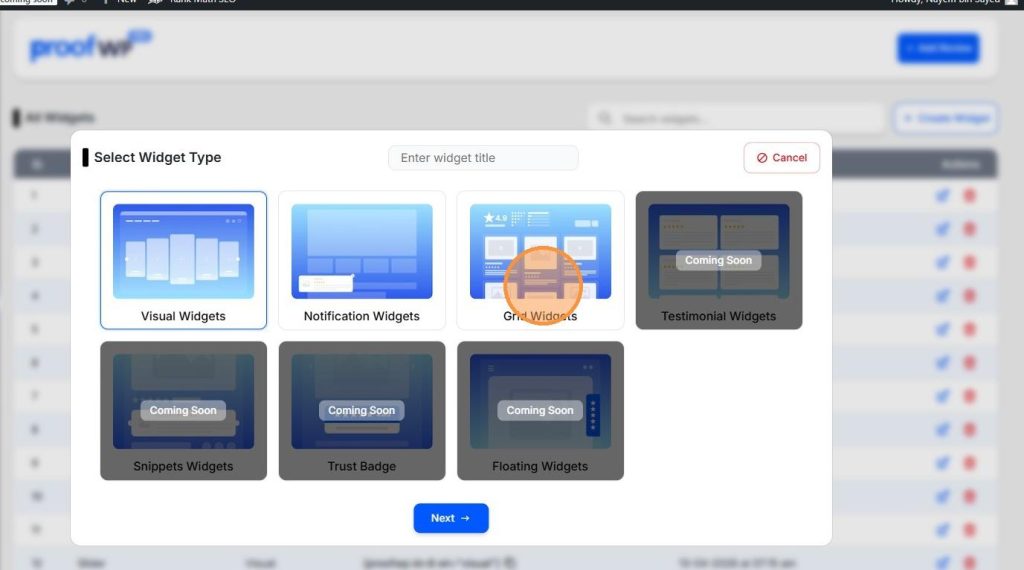
Step 6: Select Your Widget Type
Choose the Grid Widgets type.
Step 7: Select Your Reviews
Choose the reviews you have created earlier that you want to display.

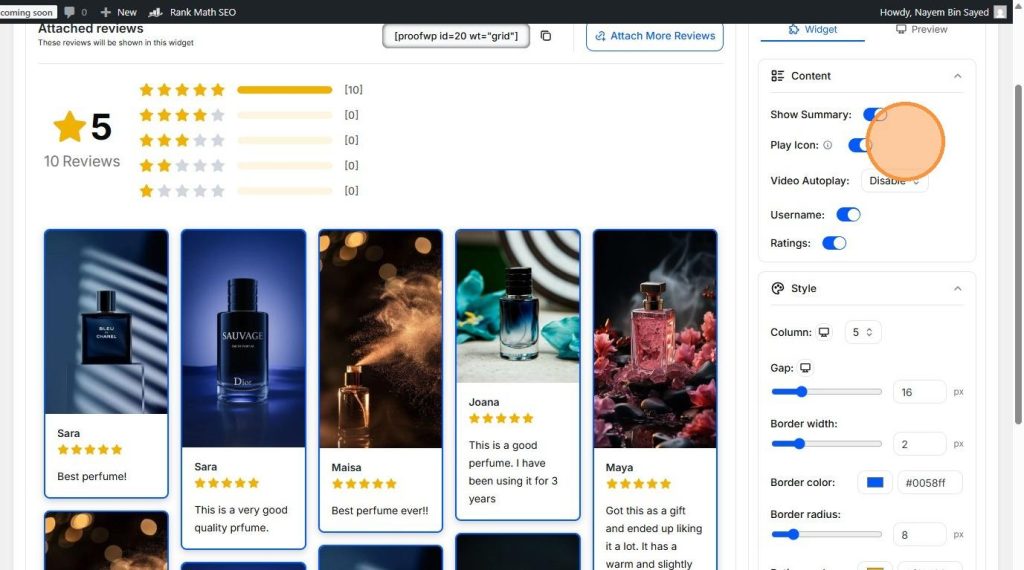
Step 8: Edit the content
From the widget settings edit the content as you like.
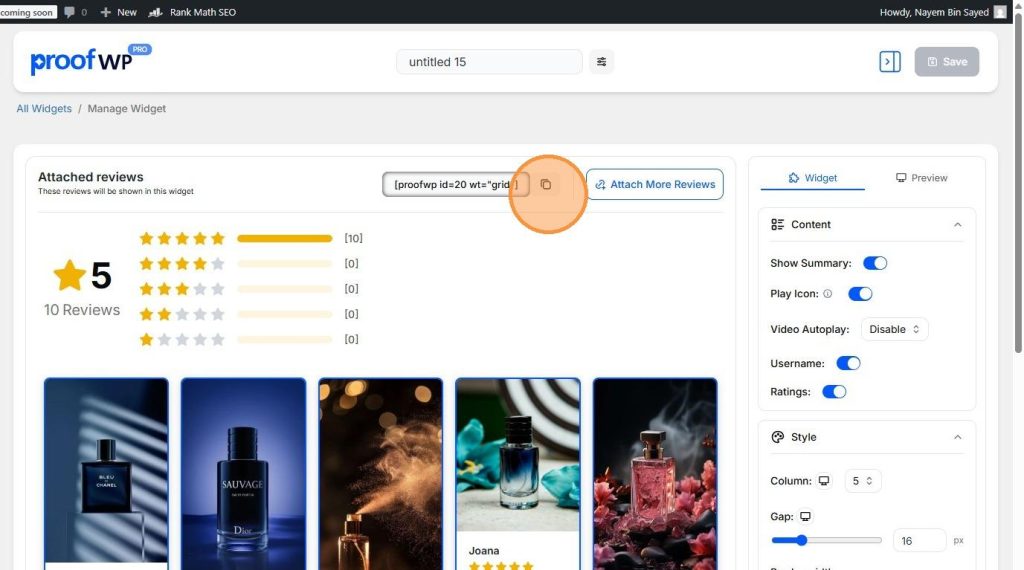
Step 9: Copy the Shortcode
Now copy the shortcode generated for your widget.
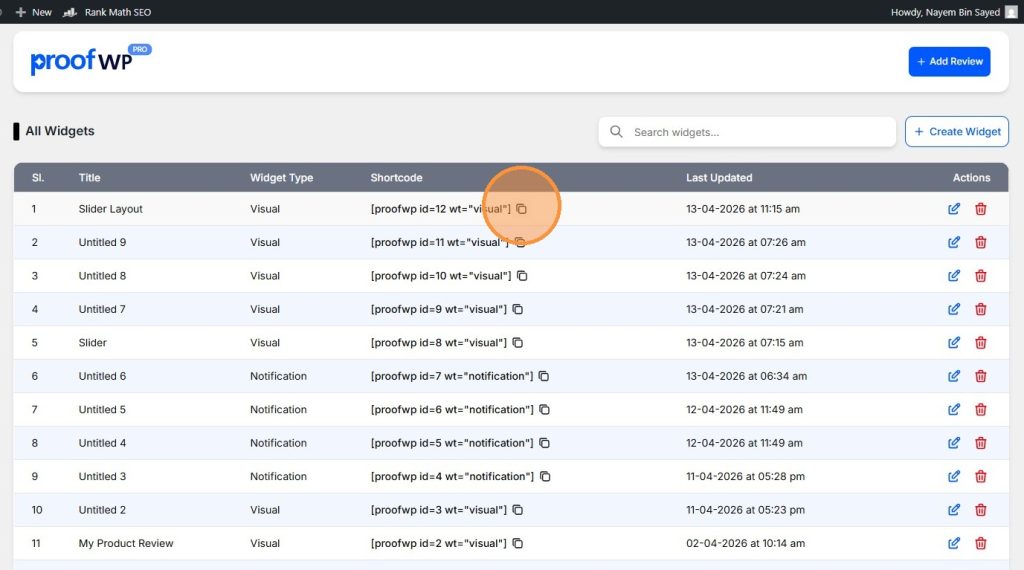
Step 10: Copy from Widget List (Optional)
You can also copy the shortcode later from the widget list in the ProofWP dashboard.
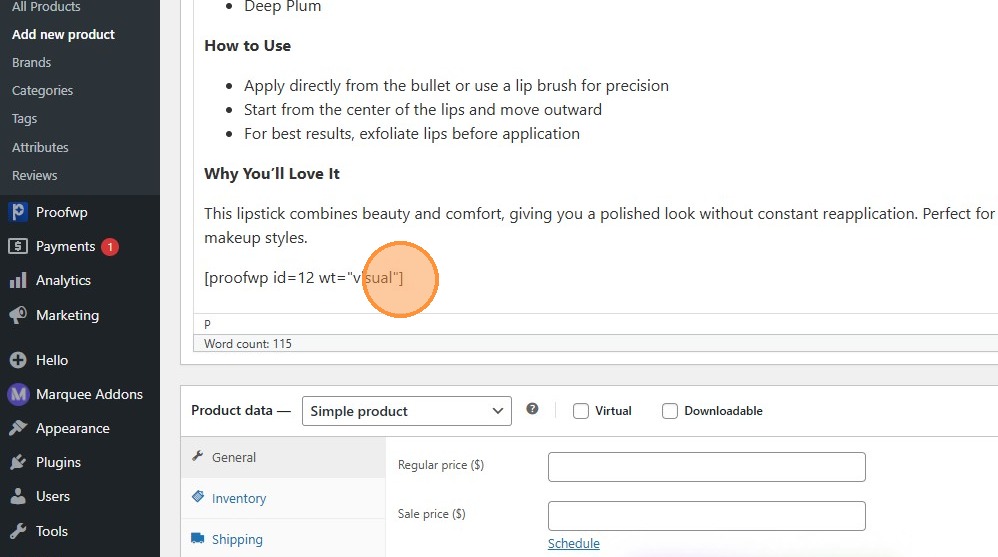
Step 11: Paste the Shortcode on Your Page
Paste the shortcode anywhere in your page design where you want the review slider to appear (like product pages or landing pages).
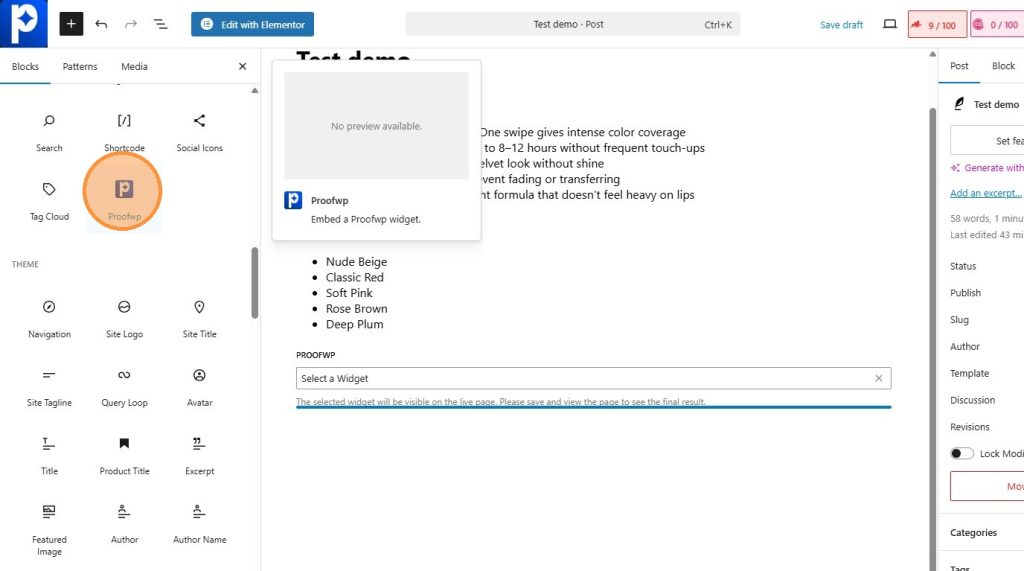
Step 12: Use ProofWP Widget (Optional)
You can also use the ProofWP widget directly if you are using Gutenberg or Elementor.
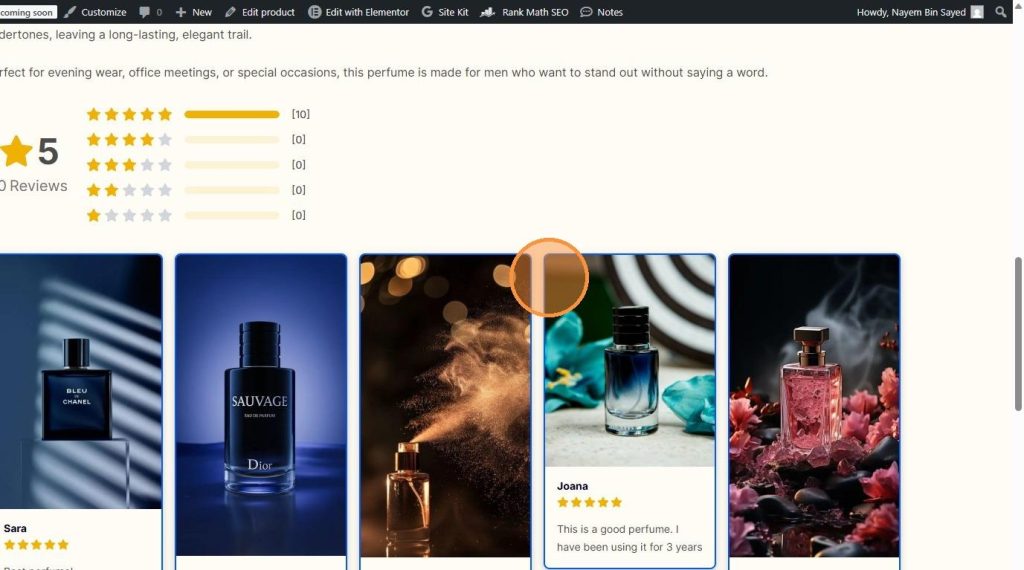
Step 13: Preview and Adjust
Preview your page and adjust the design if needed to match your website style.
Step 14: View Review Details
When users click on a review, they can see the full review details in a preview.