Step 1: Install and Activate ProofWP
- You need the ProofWP and ProofWP Pro plugin installed and activated on your website.
- You can find detailed installation instructions in our dedicated installation blog post.
- Install the plugin and click Activate once the installation is complete.
Step 2: Migrate Reviews to ProofWP
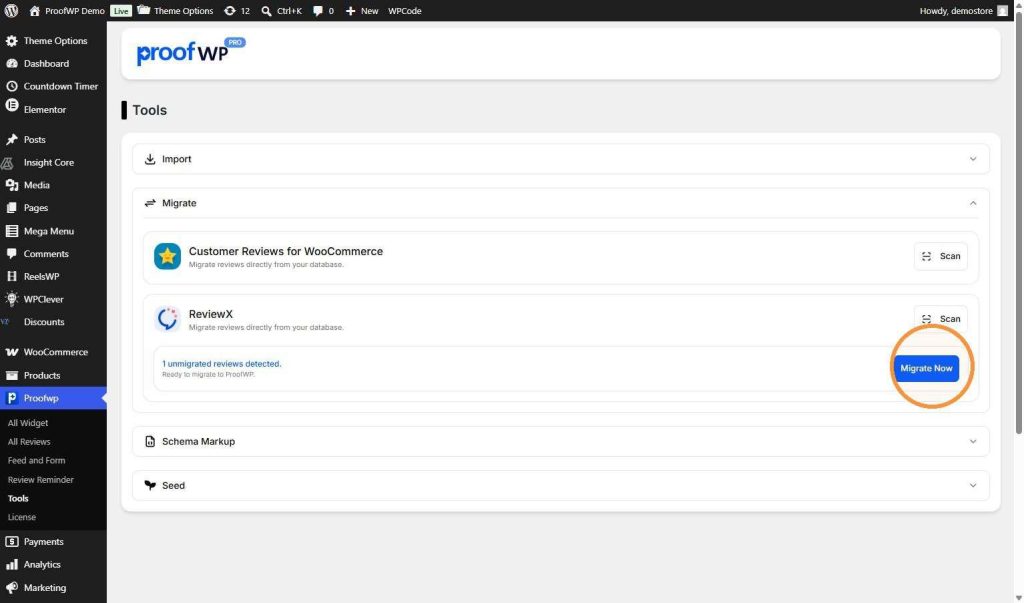
Go to your WordPress admin menu, click on Proofwp, and select Tools. Next, expand the Migrate section. Find the ReviewX option and click the blue Migrate Now button. The plugin will tell you how many reviews are ready to move (for example, 1 unmigrated reviews detected).
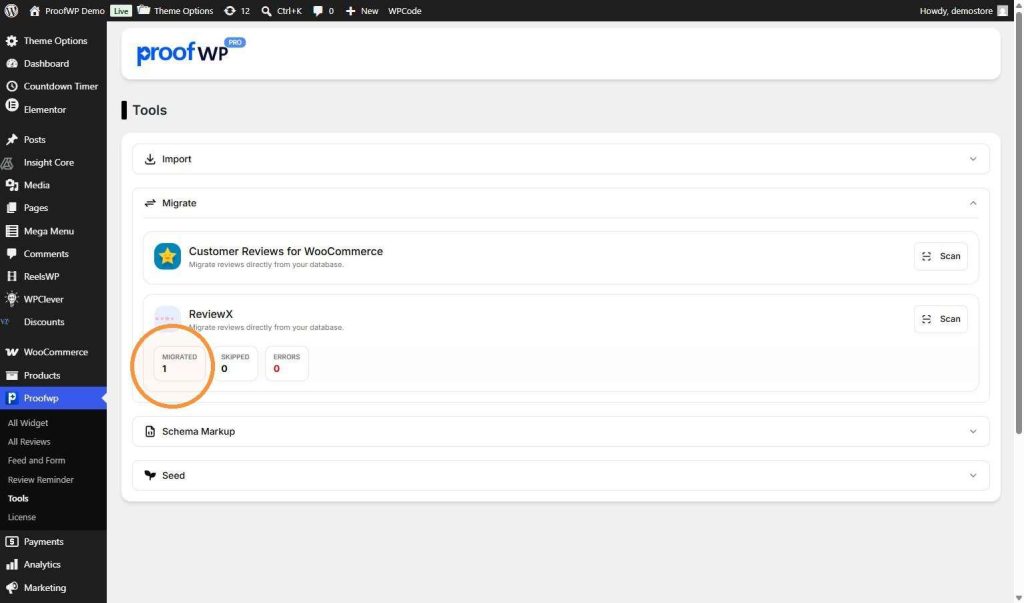
After you click the button, ProofWP will automatically copy the reviews. When it is finished, you will see a success box. It shows the total number under MIGRATED (for example, 1), and checks for any SKIPPED reviews or ERRORS (for example, 0).
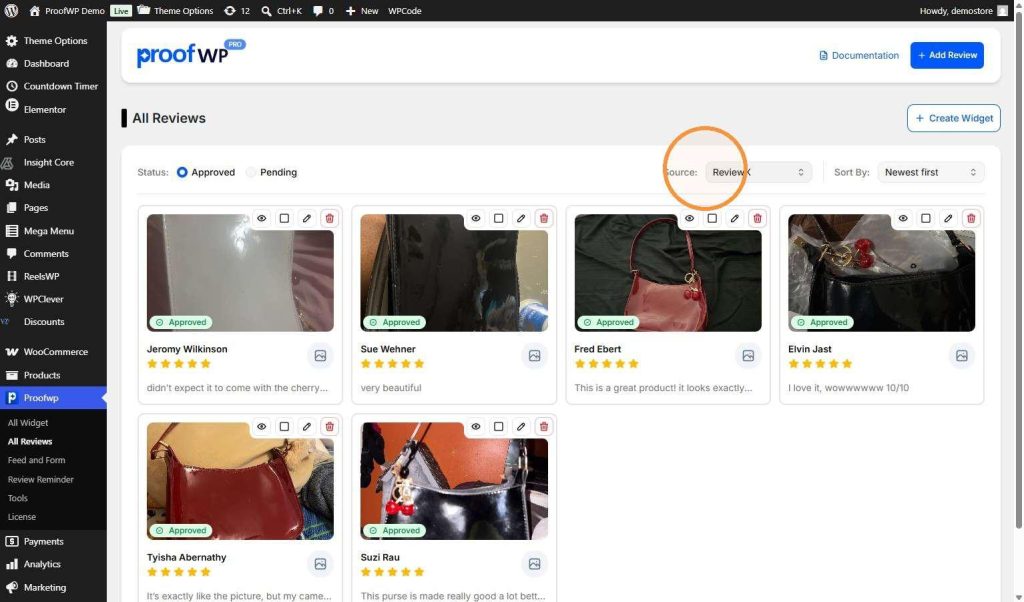
To see the reviews you just moved, go to Proofwp and click on All Reviews. Click the Source dropdown menu at the top right and select ReviewX. You will see all your migrated reviews displayed beautifully in the ProofWP card layout.