Photo and video reviews allow customers to share real images and videos of products they have purchased. These visual reviews help potential buyers see how products look and perform in real-world situations, making them one of the most effective forms of social proof for WooCommerce stores.
If you’re looking for a simple way to add photo reviews, video reviews, and user-generated content to your WooCommerce store, ProofWP makes it easy to collect, manage, and display customer feedback. Customers can upload images and videos alongside their product reviews, helping you showcase real experiences, strengthen social proof, build buyer confidence, and increase conversions.
Unlike text-only reviews, visual reviews provide shoppers with greater transparency and authenticity during the buying journey. When potential customers can see real photos and videos from previous buyers, they’re more likely to trust your products and make informed purchasing decisions.
In this guide, you’ll learn how to add photo and video reviews to WooCommerce, enable customer media uploads, moderate review submissions, and display visual reviews on your product pages using ProofWP.

Why Add Photo & Video Reviews?
Photo and video reviews help:
- Increase customer trust
- Improve conversion rates
- Showcase real customer experiences
- Reduce purchase hesitation
- Create authentic social proof
What You’ll Need
- Before you begin, make sure:
- Your products are published
- WooCommerce is installed and activated
- ProofWP is installed and activated
Step 1: Go to the Plugins section
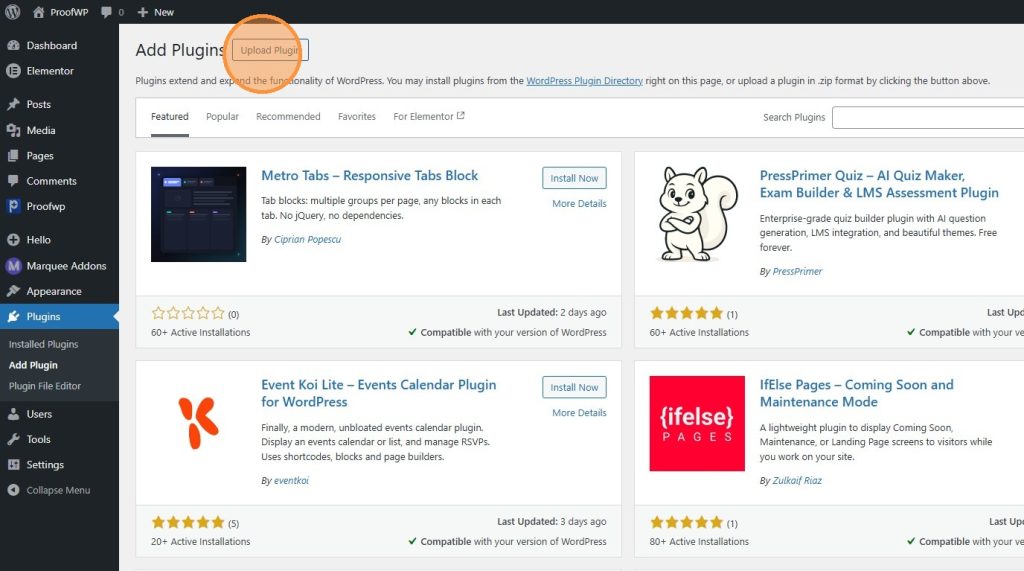
From your WordPress dashboard, go to Plugins.
On the Plugins page, click Add Plugin.
Now either upload the ProofWP plugin file or search for it from the plugin library.
If you’ve purchased the Pro version of ProofWP, you’ve unlocked access to premium features, advanced review functionality, and modern display layouts. Follow the instructions below to install the Pro version and activate your license key.
Step 1.1: Pro installation Guideline – Upload a ZIP from Your Computer
- Log in to your account using our given credentials and Download the Latest version ProofWP Pro.
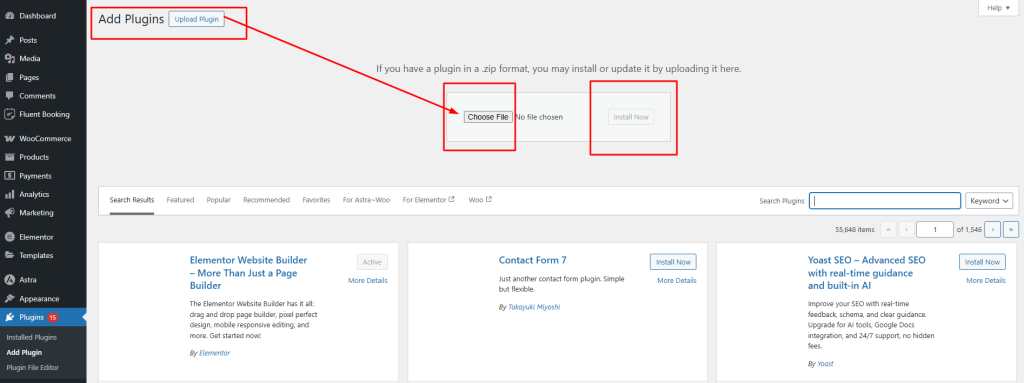
- Now Login to your wordpress dashboar and Go to Plugins → Add New Plugin.
- Click Upload Plugin.
- Choose the download file “proofwp-pro.zip” (or provided ZIP) and click Install Now.
- Click Activate.
Step 1.2: Activate License Key
From the ProofWP menu, click the License sub-menu. Enter your license key(received after purchasing the product via email or copy from the CRM), then click Activate. Once activated, all Pro features will be unlocked.
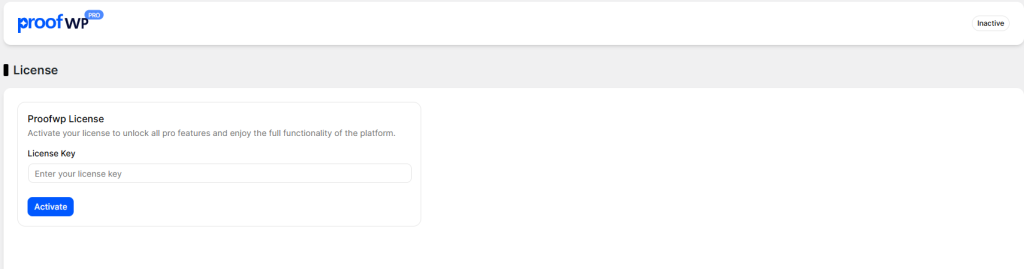
If you are facing any issues with license activation, please contact us at [email protected].
After successfully activating your license, you can start adding videos and create your reels.
Step 2: Open the ProofWP dashboard
After installing the plugin, go to the ProofWP dashboard from your WordPress admin panel.
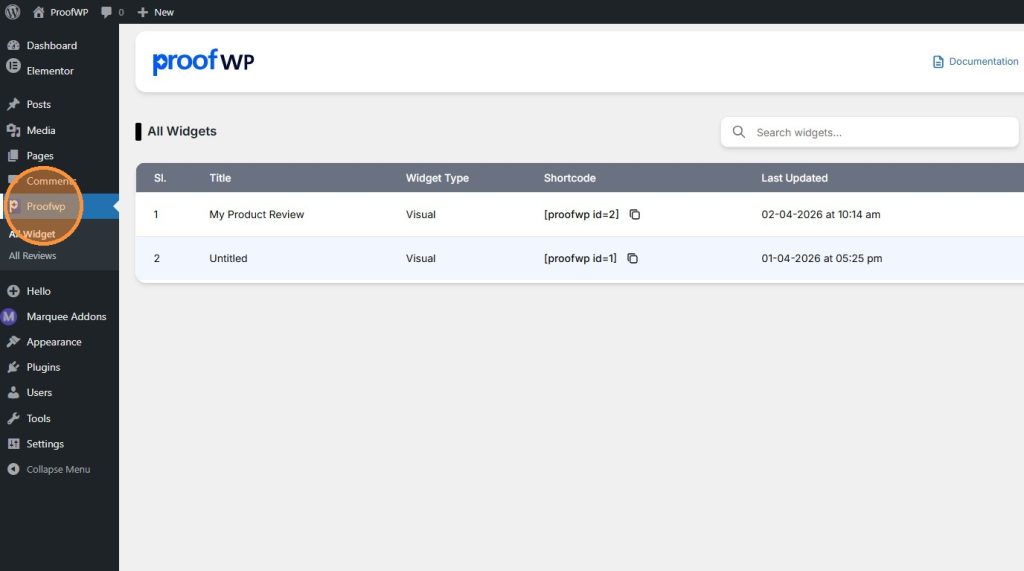
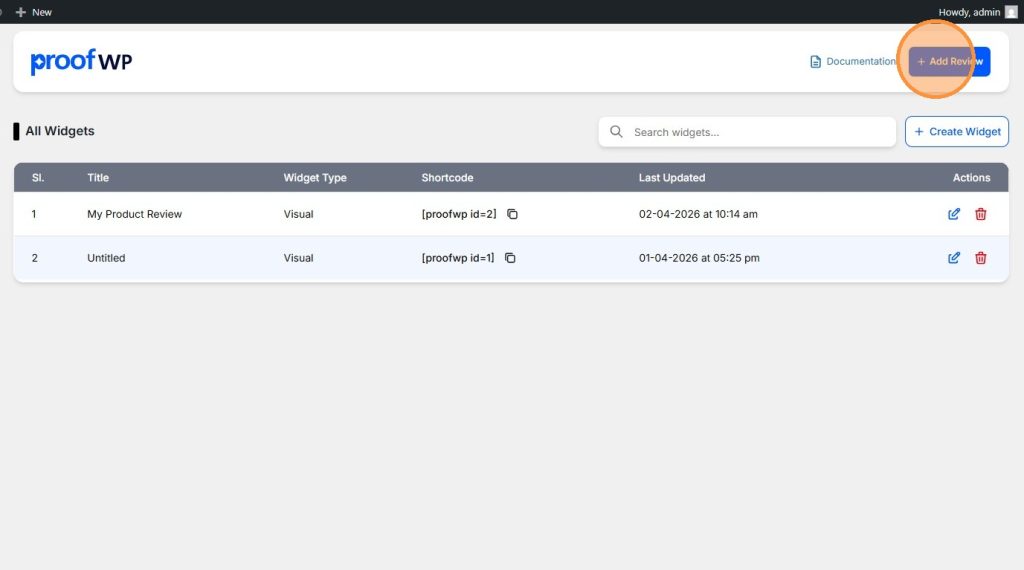
Step 3: Click Add Review
Inside the ProofWP dashboard, click Add Review to create a new review.
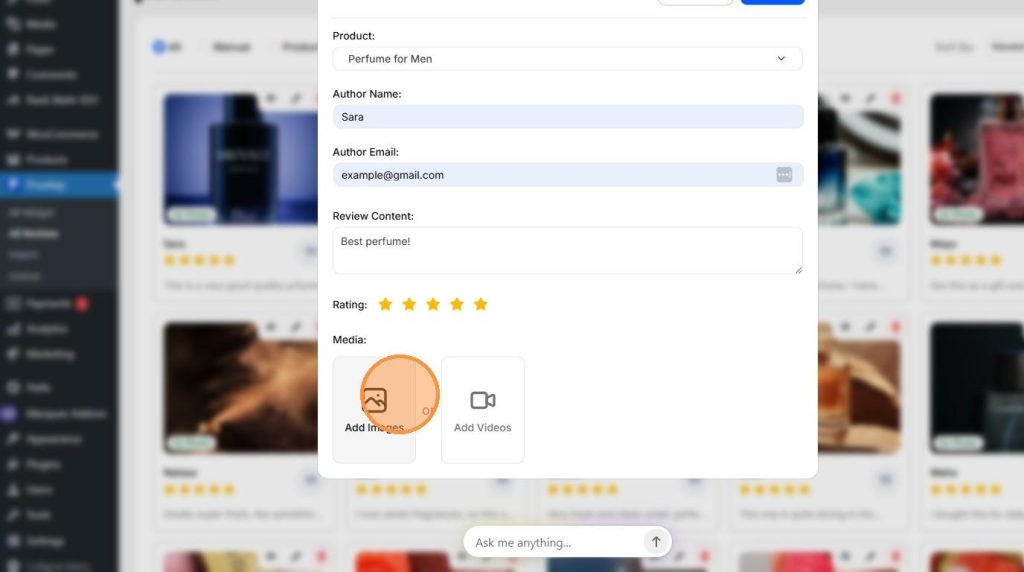
Step 4: Fill in the Customer Review Details
Enter the review details, including the reviewer’s name, review content, star rating, and any photos or videos you’d like to display. Adding images and videos helps create more engaging, authentic reviews that build trust with potential customers. Once you’ve entered the information, click Save to publish the review.
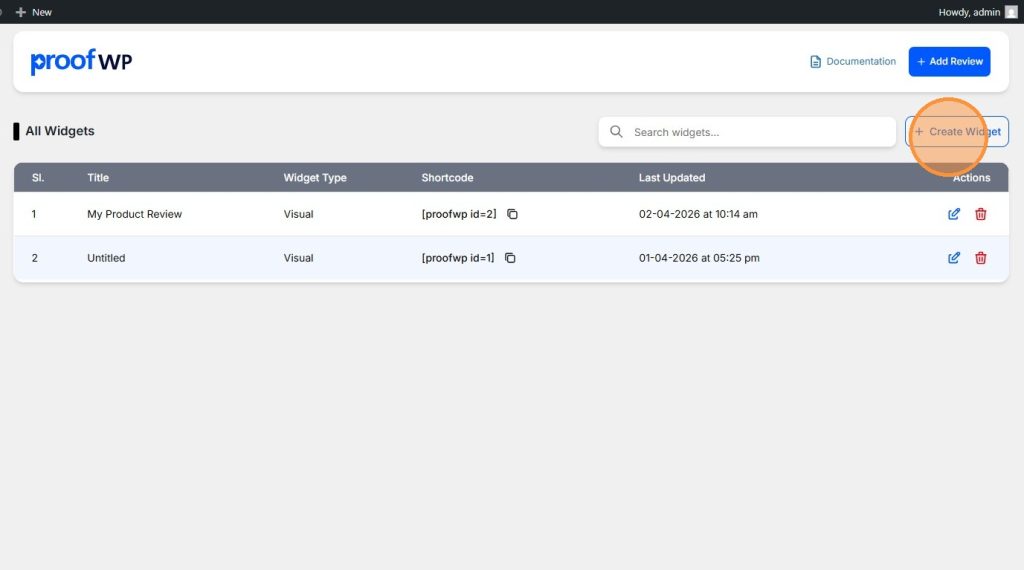
Step 5: Click Create Widget
After saving the review, go back and click Create Widget.
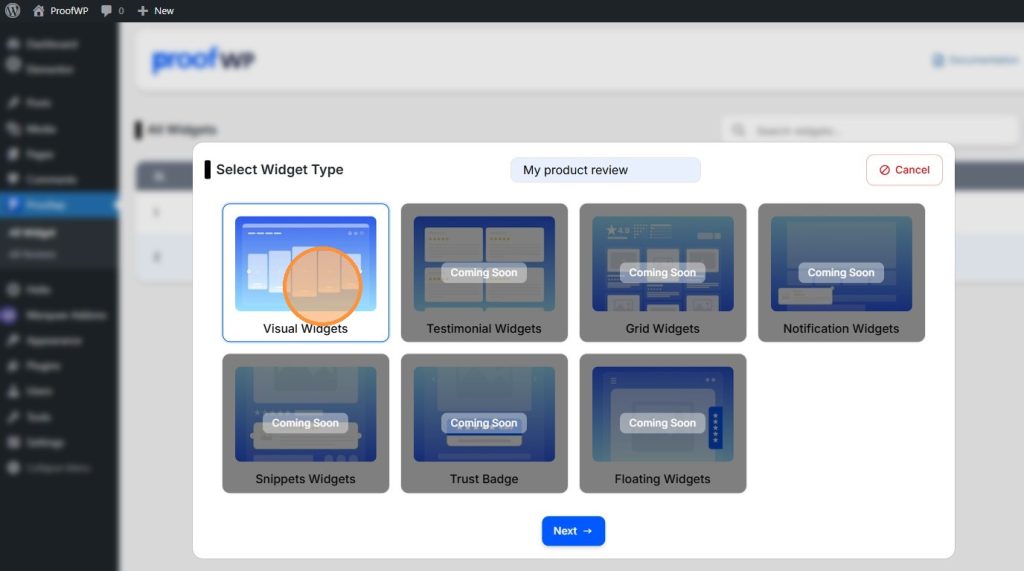
Step 6: Choose a widget template
Select the template you want to show on your page. Choose the layout that best matches your store design and click next.
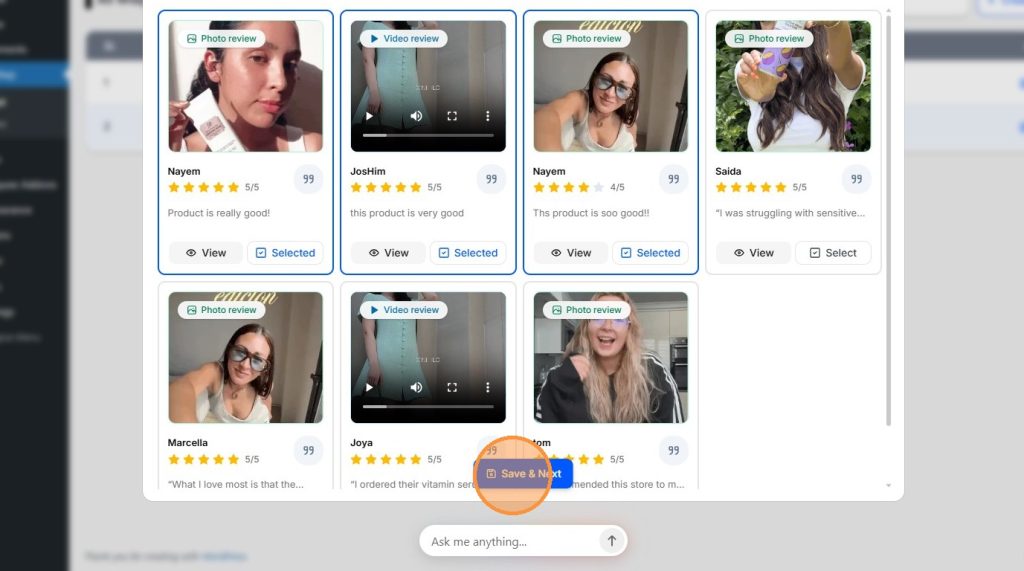
Step 7: Select the reviews you created earlier
Now choose the reviews you want to include in the widget and click save & next button.
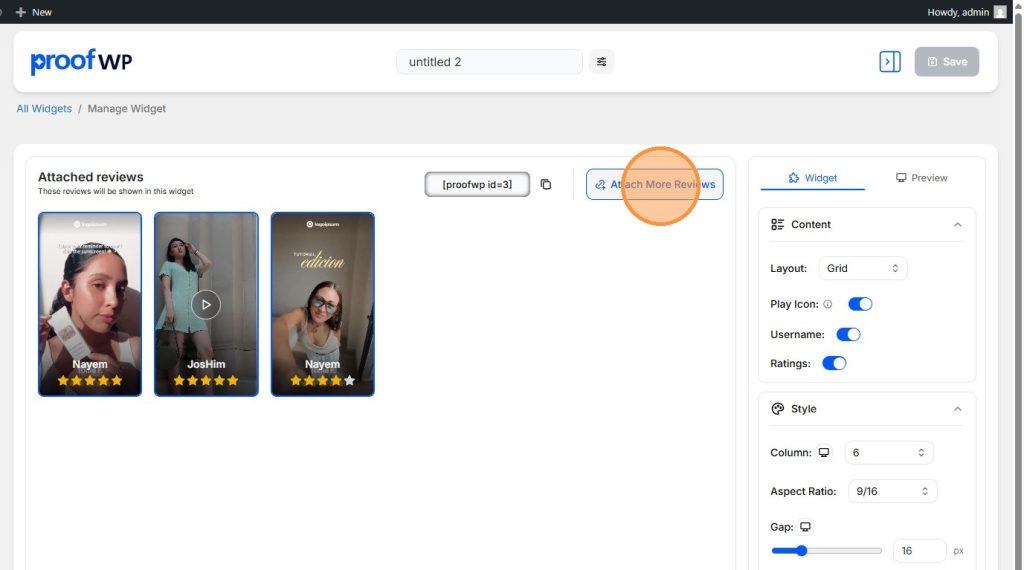
Step 8: Add more reviews if needed
You can select more existing reviews or even add new reviews from this area.
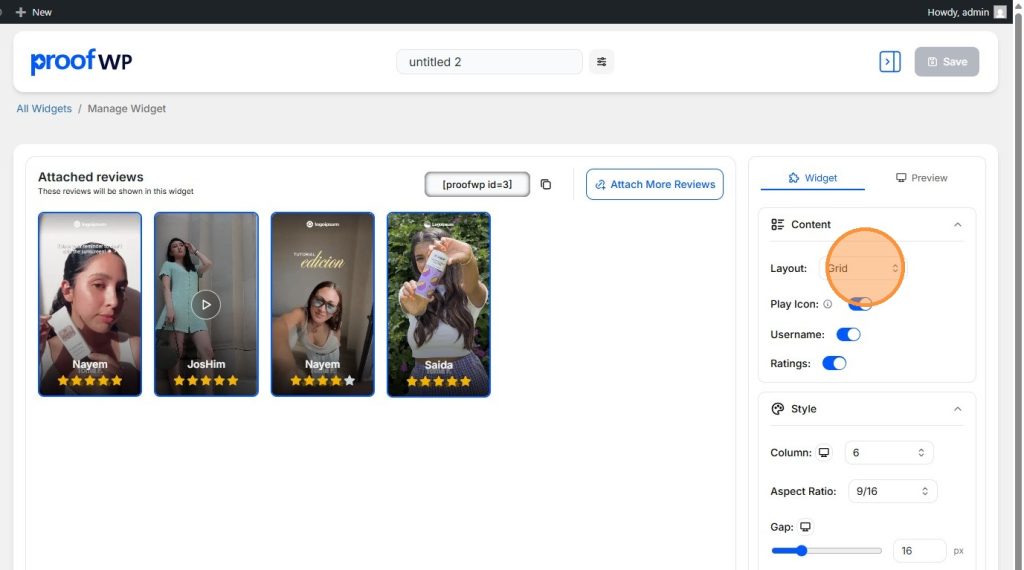
Step 9: Style the widget layout
Now customize the look of your widget. You can adjust the layout and design settings from here.
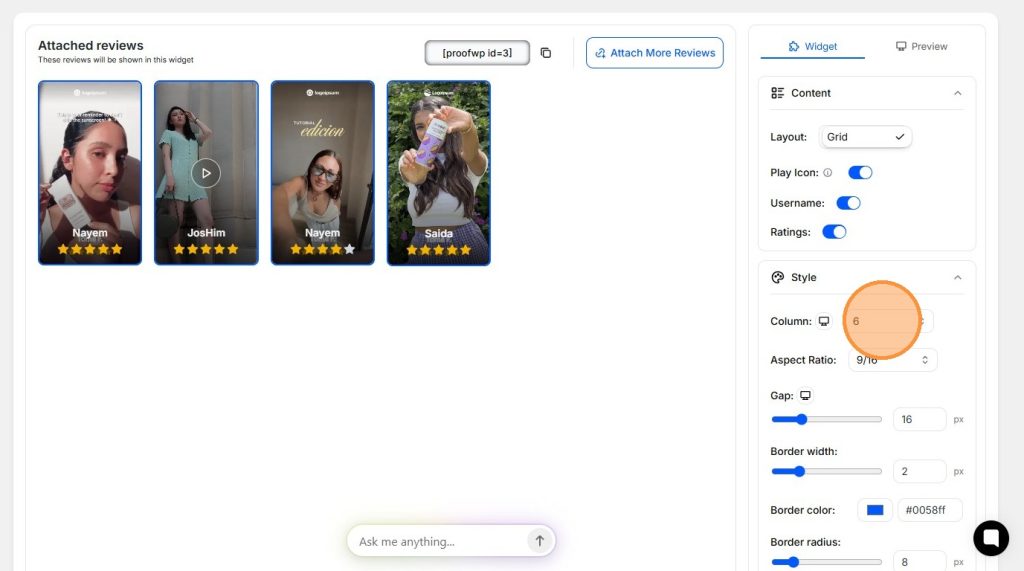
Step 10: Edit the widget styles
Use the widget dashboard options to change the design and make it match your page style.
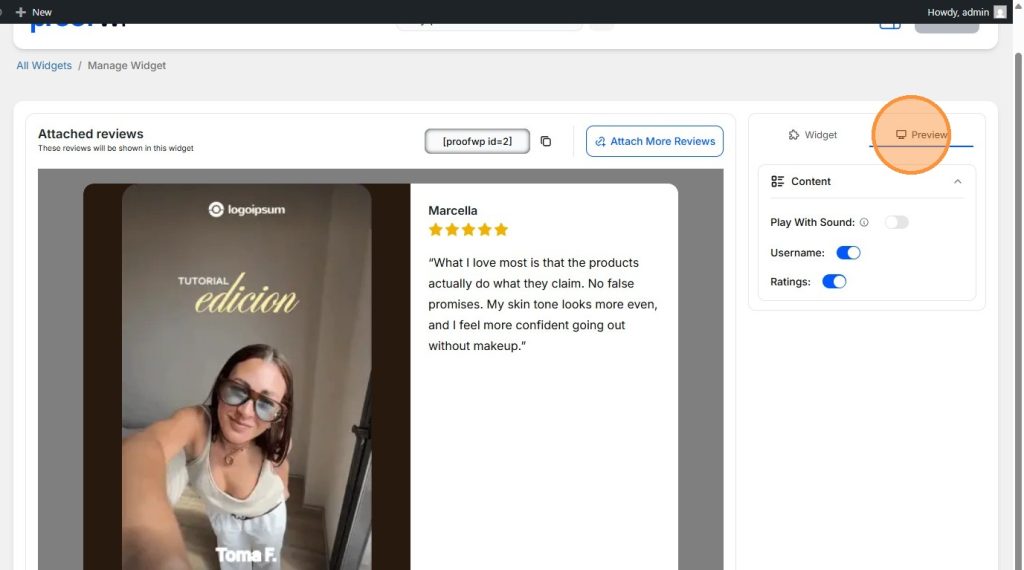
Step 11: Preview your reviews
Check the preview to see how the review widget will appear on your site.
Step 12: Copy the shortcode
When the design is ready, copy the shortcode from the widget editor.
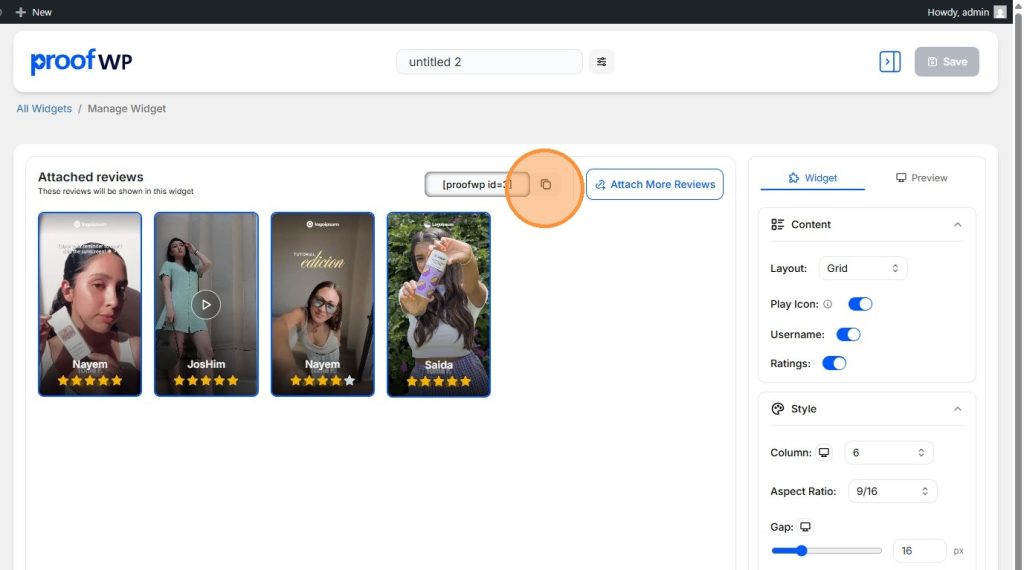
Step 13: You can also copy the shortcode from the widget list
You can also find and copy the shortcode directly from the ProofWP dashboard widget list.

Step 14: Paste the shortcode on your product page
Paste the shortcode into your product page or anywhere in your design where you want the reviews to appear.
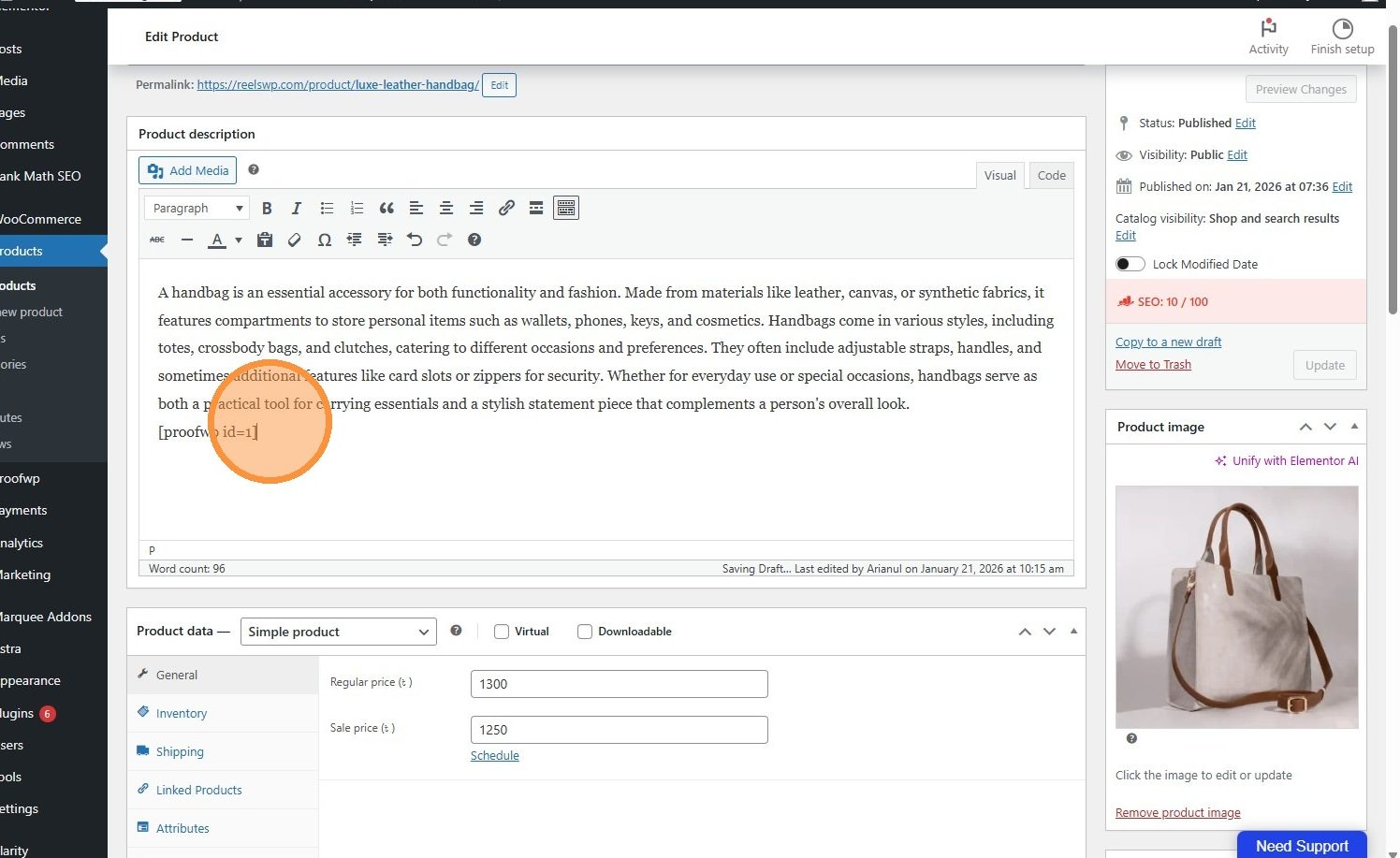
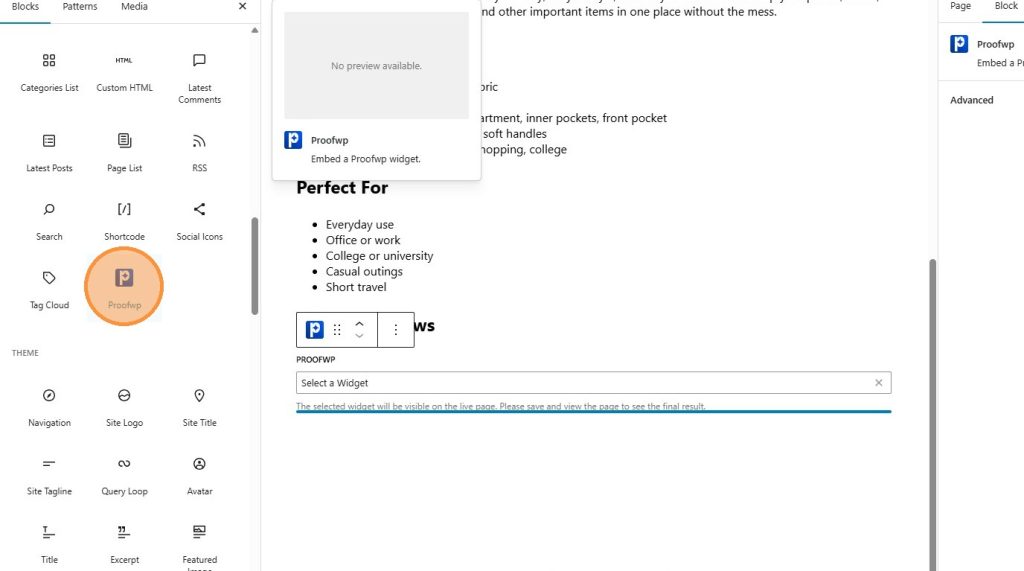
Step 15: Use the ProofWP widget
You can also use the ProofWP widget there to show your reviews. You can use the ProofWP widget for elementor page builder also.
Step 16: Save and preview your page
Save your page, preview it on the front end, and adjust the design if needed.
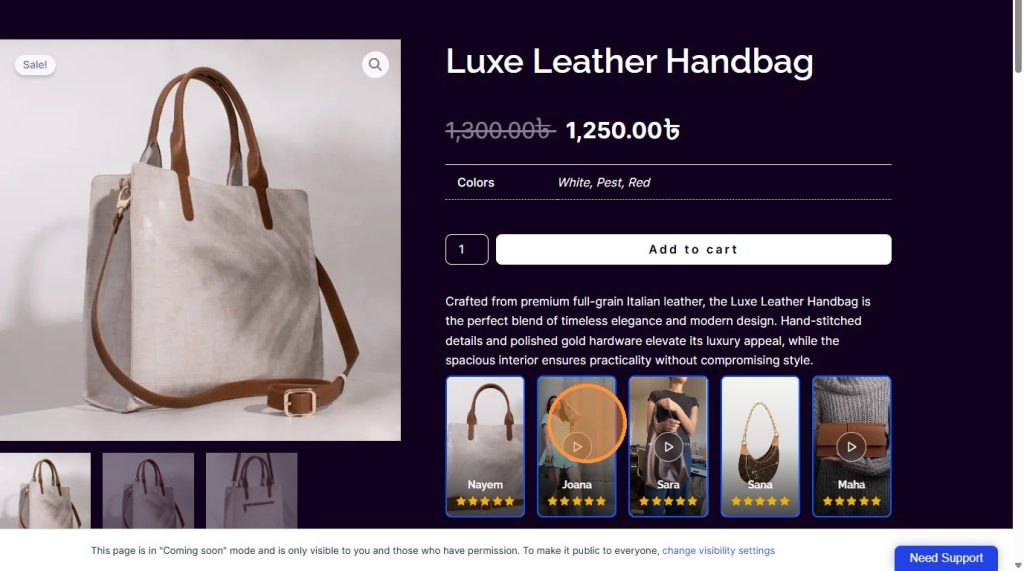
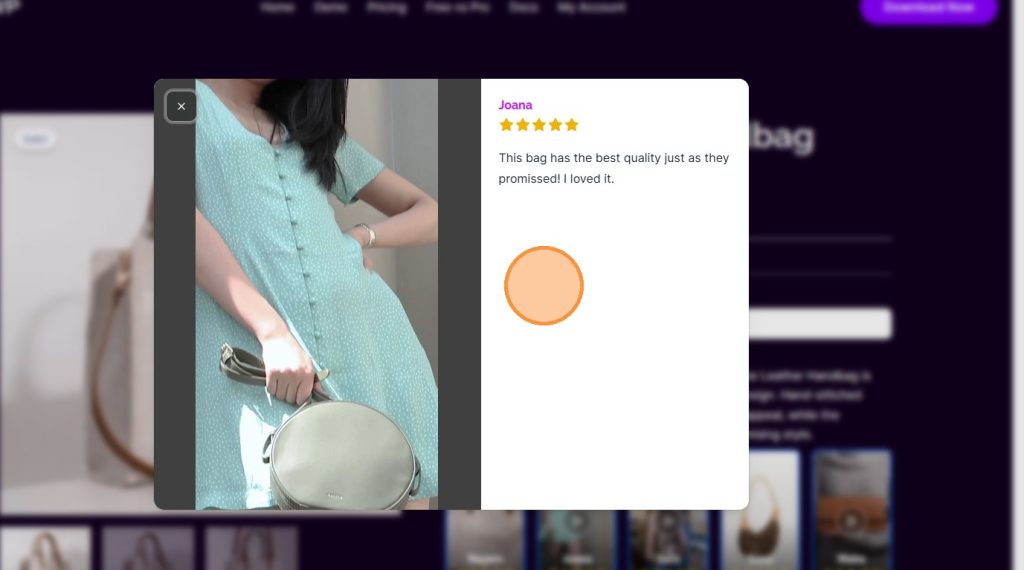
Step 17: Click a review to view full details
Once the widget is live, users can click a review to see the full review details.
Watch the Complete Video Tutorial
Frequently Asked Questions (FAQs)
1. Do I need WooCommerce to use ProofWP?
No, you can use ProofWP on any WordPress site. However, it works best with WooCommerce if you want to show reviews on product pages.
2. Can I add photo and video reviews with ProofWP?
Yes, ProofWP allows you to add both images and videos to your reviews. This helps make your reviews more real and engaging.
3. Where can I display the review widget?
You can place the review widget anywhere using a shortcode. This includes product pages, landing pages, blog posts, or even custom sections.
4. Does ProofWP work with Elementor?
Yes, ProofWP works with Elementor. You can use the ProofWP widget directly inside Elementor to display your reviews easily.
5. Can I show only selected reviews in a widget?
Yes, while creating the widget, you can choose which reviews you want to display.
6. Can I use multiple review widgets on my website?
Yes, you can create multiple widgets and use them on different pages based on your needs.
7. Why are customer reviews important for my website?
Customer reviews help build trust and show real user experiences. This can improve your credibility and increase conversions.